A few weeks ago, a client messaged me in a panic. They had built a beautiful new landing page using Elementor and pasted a custom interactive widget script directly into the editor using the standard HTML block. Inside the Elementor editor, everything looked perfect. But the moment they logged out and checked the live website, the widget was completely invisible.
When I opened up the browser’s developer console on the live page, the screen lit up with red errors. It was a classic JavaScript execution failure.
This is one of the most common issues WordPress users run into when trying to add custom features—like calculators, custom forms, or tracking scripts—into page builders. If you are struggling with your page builder layout swallowing your custom logic, don’t worry. In this guide, I will show you exactly how to fix elementor code widget not executing custom script errors using three simple developer workflows.
Why Page Builders Break Custom JavaScript
When you paste raw JavaScript into a standard editor widget, the code often fails to run for one of two reasons:
- Dynamic AJAX Loading: Elementor loads elements dynamically behind the scenes. If your script tries to run before the theme has completely finished building the webpage visual grid, the script targets an element that doesn’t exist yet and crashes.
- Strict Security Filtering: Modern optimization tools and themes sometimes sanitize text fields, stripping out or delaying
<script>tags to prevent malicious code from executing.
By using a proper wrapper snippet or loading the logic through the correct theme hooks, you can force your scripts to execute perfectly every single time.
Fix 1: Wrap Your Code in a DOMContentLoaded Listener
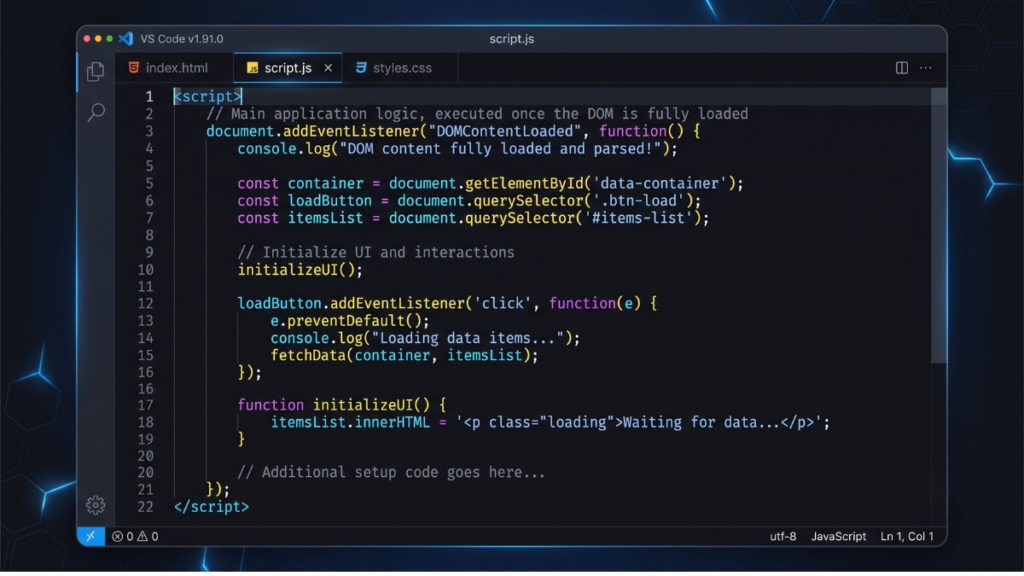
If your code widget is throwing an undefined error, it usually means the script is executing too early. You can fix this immediately by wrapping your custom JavaScript in an event listener that forces it to wait until the entire page layout is ready.
Open your Elementor HTML or Code Block, and rewrite your script tags to look like this:
<script>
document.addEventListener("DOMContentLoaded", function() {
    // Paste your original custom JavaScript snippet right here
    console.log("Page layout fully loaded. Executing script safely!");

    // Example: Your calculator or widget logic
});
</script>
Why This Fix Works
By wrapping the code inside document.addEventListener, you tell the browser: “Do not touch this code yet. Wait until the entire HTML structure has loaded safely, and only then run the script.” This completely avoids timing conflicts with the page builder’s frontend rendering engine.
Fix 2: Use Elementor’s Native Custom Code Feature (Pro)
If you are using Elementor Pro, pasting scripts directly into individual page visual layouts using the HTML widget is actually a bad practice. Instead, you should manage your scripts globally from the dashboard.
Navigate to your WordPress dashboard sidebar and go to Elementor > Custom Code.
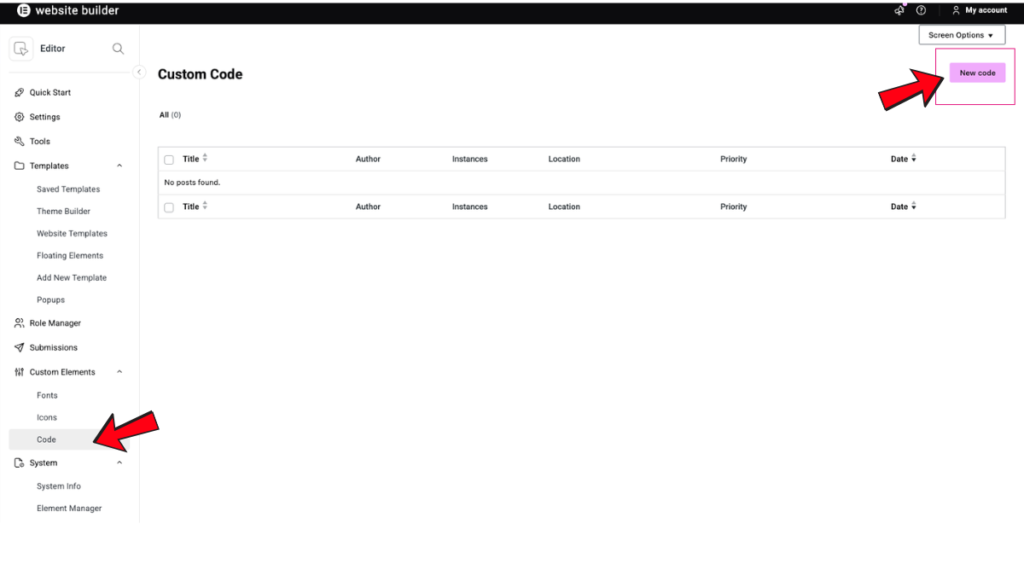
Click Add New.
Set the Location dropdown to Body – End (this ensures it loads at the bottom of the page, preventing site layout delays).
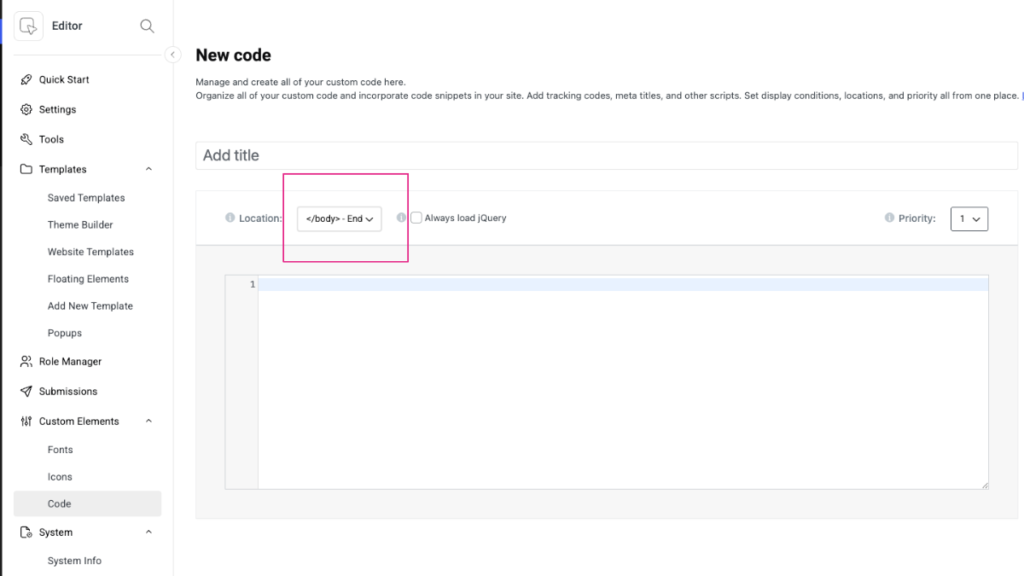
Paste your raw script tag into the code editor panel.
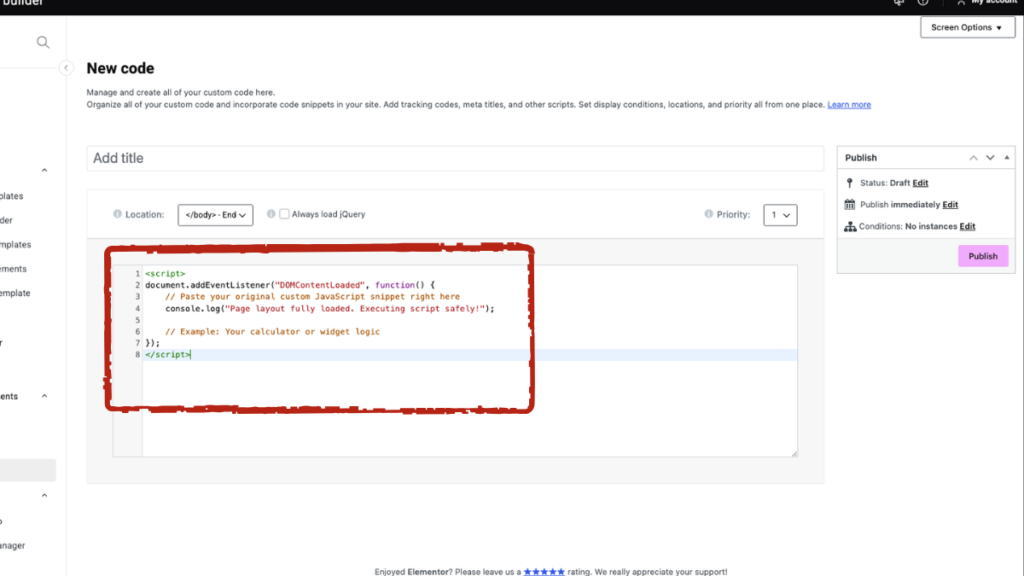
Click Publish and set the conditions to display only on the specific page where your widget lives.
Managing scripts through this central dashboard completely bypasses the content filters inside individual page layout grids.
Fix 3: Fix Conflicting Minification Tools
If your script works perfectly inside the editor but breaks completely on the live URL, an optimization or caching plugin is likely aggressive minifying your code blocks.
Tools like LiteSpeed Cache, WP Rocket, or SG Optimizer merge all scripts together to speed up performance. However, this process often breaks raw scripts pasted directly into pages.
- The Solution: Open your caching plugin’s settings panel.
- Look for the JavaScript Optimization tab.
- Locate the Exclude JavaScript text box.
- Add a unique class or identifier from your custom script into the exclusion list so the optimization tool leaves your specific code untouched.
Conclusion
You don’t need to ditch your page builder just to run custom interactive scripts. By ensuring your code waits for the DOM layout to build completely, utilizing built-in code management tools, and configuring your caching exclusions correctly, you can keep your theme lightweight and fully functional.
Try wrapping your code with the DOMContentLoaded snippet first, clear your site cache, and check your live URL in an incognito window!

Vipul is a digital entrepreneur with a deep specialization in hardware optimization and web ecosystem management. With years of experience in the SEO industry and a passion for mechanical keyboard architecture, Vipul personally researches, tests, and writes every guide found on this site.